
A size guide opens with a beautiful transition, but the close button is hard to reach and the keyboard focus has disappeared. The effect looks finished; the interaction is not. Chrome 117’s September additions make it easier to animate elements such as dialogs and popovers into and out of view. They are a good reason to review the entire overlay experience, including the unglamorous act of leaving it.
Decide whether the page needs an interruption
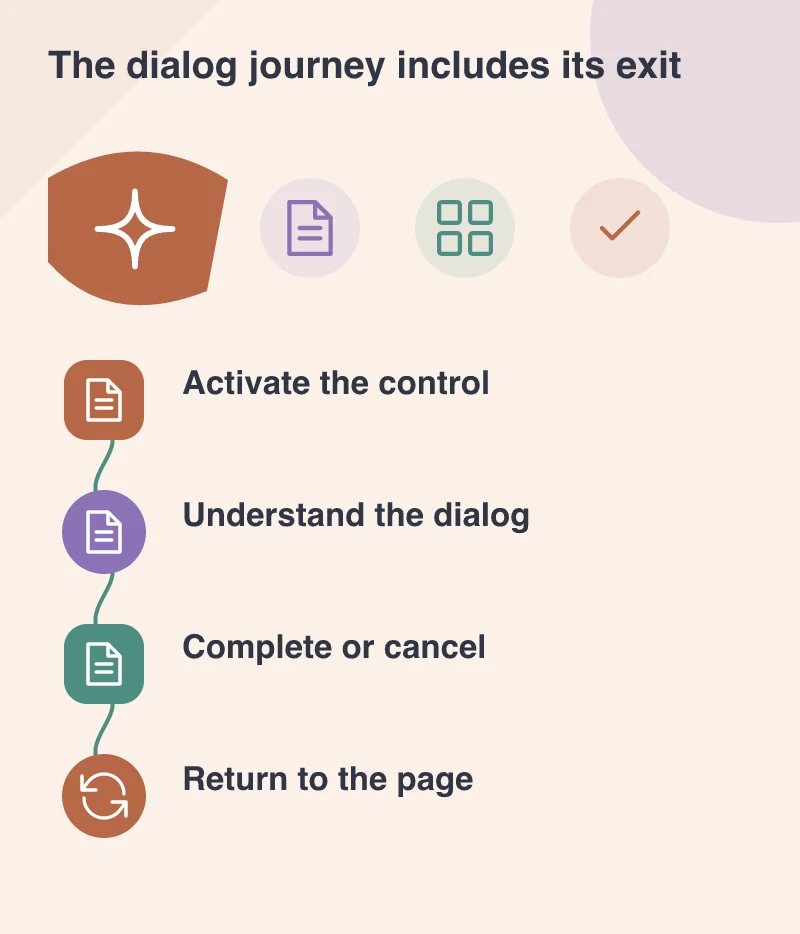
A short explanation may work better beside the field it describes than inside a dialog. Use an overlay when there is a clear benefit, such as inspecting a larger product image or completing a focused task while retaining the underlying context. Do not introduce one merely because a transition is easy to implement.
A useful design brief identifies the trigger, the content and the expected result. A customer opening a size guide expects measurements and an explanation, not a second marketing message. Keeping that promise gives the interface a clear purpose and reduces the temptation to keep adding unrelated controls to the same small panel.
Make the opened state understandable
The dialog should have an identifiable heading and a layout that works when the content is longer than expected. A phone in landscape, enlarged text or a translated label can change the available space. Test those conditions rather than assuming that a desktop screenshot defines the whole component.
Keyboard behaviour and focus need deliberate review. The visitor should understand that the interaction has moved into a new context, be able to reach the relevant controls and avoid accidentally operating hidden content behind it. A visual fade does not establish those behaviours by itself.
Use motion to connect states, not delay work
The browser additions provide ways to coordinate entry and exit transitions, including elements moving through the top layer. Keep the movement short enough that it does not become a wait before the task can begin. Content should not be unusable until an elaborate animation has completed.
Provide a coherent reduced-motion version and an ordinary fallback where the required feature is unavailable. The open and closed states should still communicate the same result. If removing the effect makes the component impossible to understand, the underlying interaction probably needs clearer cues.
Review closing as carefully as opening
Test the visible close control, the expected keyboard dismissal and the return to the original page position. If the customer cancels, say whether any entered information has been kept or discarded. Where unsaved work matters, explain the consequence before losing it rather than relying on an ornamental exit animation.
Finally, follow the visitor’s next action after the panel closes. Can they resume comparing sizes, finish the form or continue browsing without finding their place again? The CSS improvements can make that transition feel more considered. The quality of the component still depends on a clear task, predictable focus and an exit that respects the visitor’s intention.