
A web app used every day should feel comfortable beside the person’s other tools. That does not require repainting the whole product to match the operating system. A more useful approach gives the brand and the user’s preferences different jobs, while keeping the important controls easy to recognise.
Use native integration where it helps
Chrome 150 adds the AccentColor and AccentColorText system colours. In the stated supported context—an installed web application on the initial profile—they can reflect the device’s chosen accent colour. This is a specific capability, not a promise that every browser visit exposes the same system preference.
It can be useful for selected controls in a task-focused app. A business can retain its logo, navigation and characteristic surfaces while allowing a checkbox or selected state to feel familiar. The result should still look deliberate when the system colour differs markedly from the brand palette.
Decide what must remain recognisable
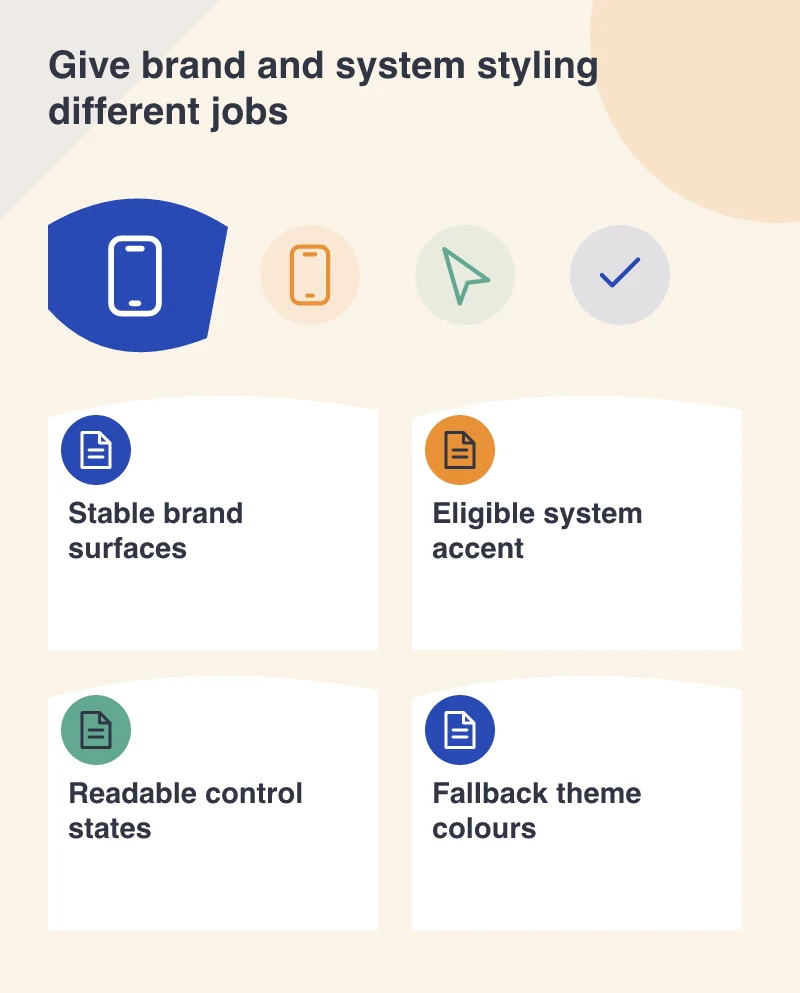
A logo or product identity has a different role from a control’s selected state. Document that distinction in the design system. Otherwise, a small native-styling enhancement can become an inconsistent mixture of brand colours and operating-system colours across the interface.
Imagine an appointment manager used throughout the day. The active selection can respond to the supported system accent, while the appointment status colours retain their documented meanings. “Selected” and “cancelled” should not become visually interchangeable because of a theme preference.
Keep meaning out of colour alone
A selected control still needs an appropriate shape, label or other cue. A warning needs explanatory text. System colours can contribute to contrast and familiarity, but they do not replace accessible interaction design or remove the need to inspect the rendered result.
Review focus, hover, disabled and selected states together. A control that looks good in its resting state may become unclear when used with a keyboard. Check light and dark contexts and make sure ordinary text remains comfortably readable beside the accent.
Include a strongly coloured system accent in the review, rather than checking only one close to the brand blue. This exposes accidental colour relationships and makes it easier to decide which controls can adapt without weakening their meaning.
Build a complete fallback
The app should work well when the system colour is unavailable. Define a coherent fallback palette rather than relying on a particular device configuration. The same task should remain understandable in an ordinary browser tab, an installed window and a different supported platform.
Native integration is most appealing when it feels quiet. It helps the app belong in the person’s environment without demanding attention or weakening the product’s identity. Start with a small, purposeful use, then judge whether it improves the everyday work rather than merely making the theme more configurable.