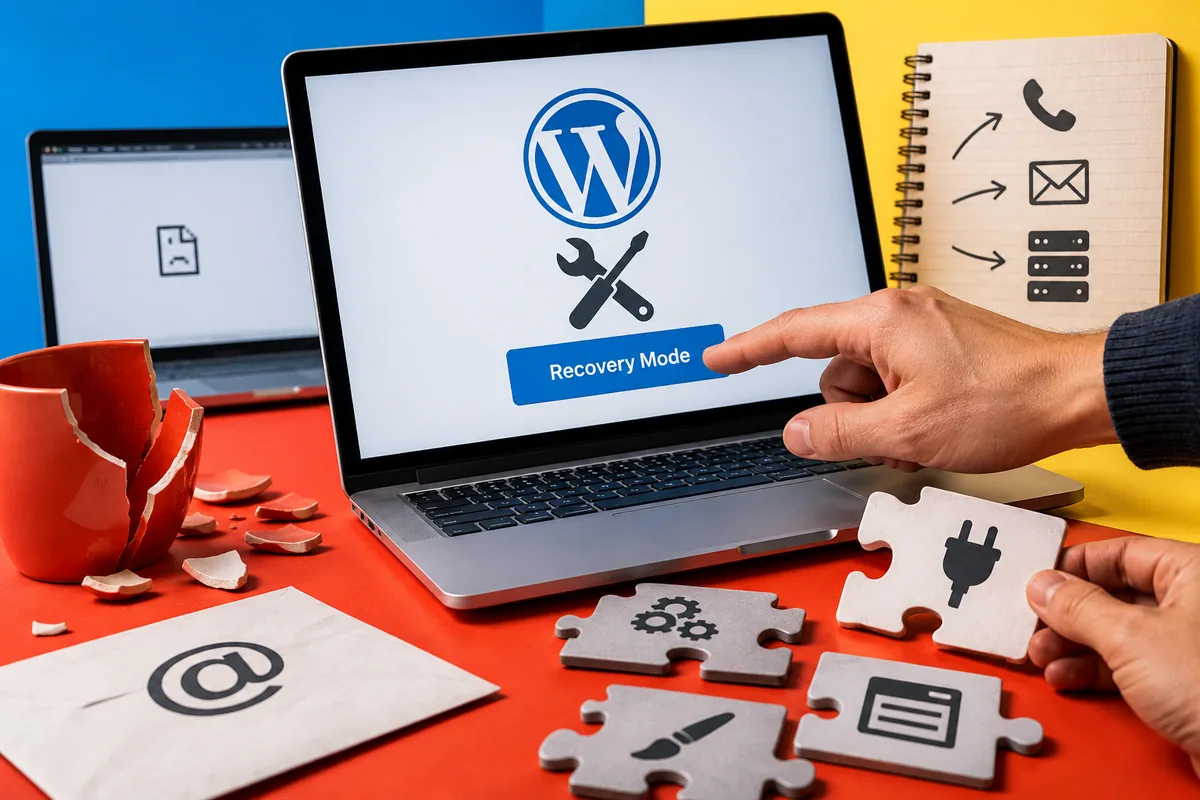
A blank website is stressful partly because it removes the familiar route to fixing the website. WordPress 5.2, released on 7 May, adds improved PHP error protection and recovery mode, alongside more Site Health information. These features can help an administrator regain access when a plugin or theme causes a fatal error. They make a difficult moment more manageable; they do not make the broken business function disappear.
Keep the administrator’s contact route working
Review the site’s administration email and confirm who receives it. An address left with a former supplier is not a dependable route during an incident. The authorised owner should know how to contact the maintainer and host independently of the public website. That information should be available even if the usual contact page cannot load.
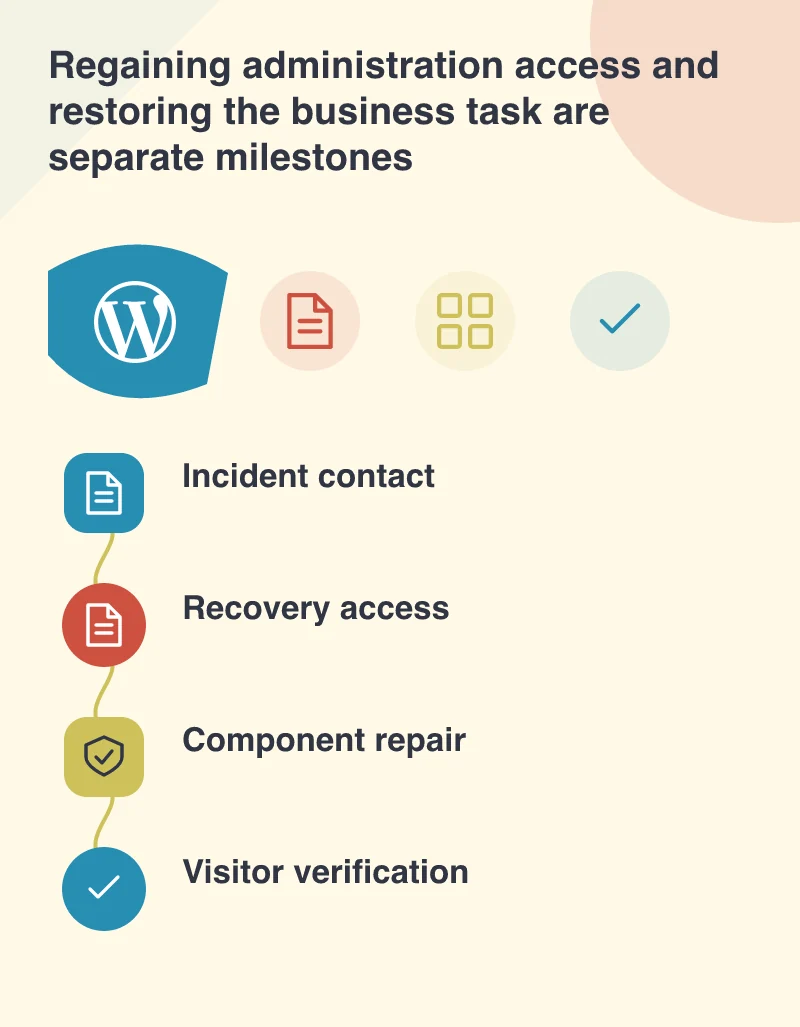
Imagine a site where a plugin powers appointment requests. If that component causes a fatal error, the immediate priority is access and diagnosis. The business also needs to know whether visitors can still request appointments. Restoring the dashboard and restoring the service are related tasks, but they are not necessarily completed at the same time.
A paused component needs a decision
The release describes recovery mode pausing error-causing plugins or themes so an administrator can manage the problem. Establish what that component normally does before deciding the repair. Disabling a decorative feature has different consequences from disabling the only enquiry form or a membership access rule.
Have the maintainer identify the cause, the supported update or repair and the affected pages. Keep a safe copy for reproducing the issue where practical. Avoid repeatedly reactivating the same failing component on the public site merely to see whether the error returns. Preserve the information needed to investigate while restoring an understandable visitor experience.
Use Site Health as evidence for support
WordPress 5.2 adds pages that expose configuration and debugging information. This can make a support request more precise than saying the site is broken. Share the relevant information through an appropriate private route, with care for details about the server and installed components. A public screenshot is rarely the best way to discuss a site’s full configuration.
Distinguish a diagnostic recommendation from a demonstrated cause. A warning about one setting may deserve attention without explaining the particular failure. Combine the report with the time of the incident, the recent change and the affected task. That context helps the developer avoid making unrelated repairs while the actual fault remains.
Judge recovery at the visitor’s end
Once the technical cause is addressed, complete the appointment journey with a clearly marked test request. Check the form, confirmation and receiving system. Review other pages using the same component and confirm that temporary incident messages have been removed or updated. The dashboard loading again is a milestone, not the entire acceptance test.
The new tools reduce the chance that an error leaves the administrator without a route forward. Pair them with a maintained contact, a person authorised to repair the site and a short business-function check. That arrangement gives an owner something reassuringly concrete to do when a normally quiet website needs urgent attention.