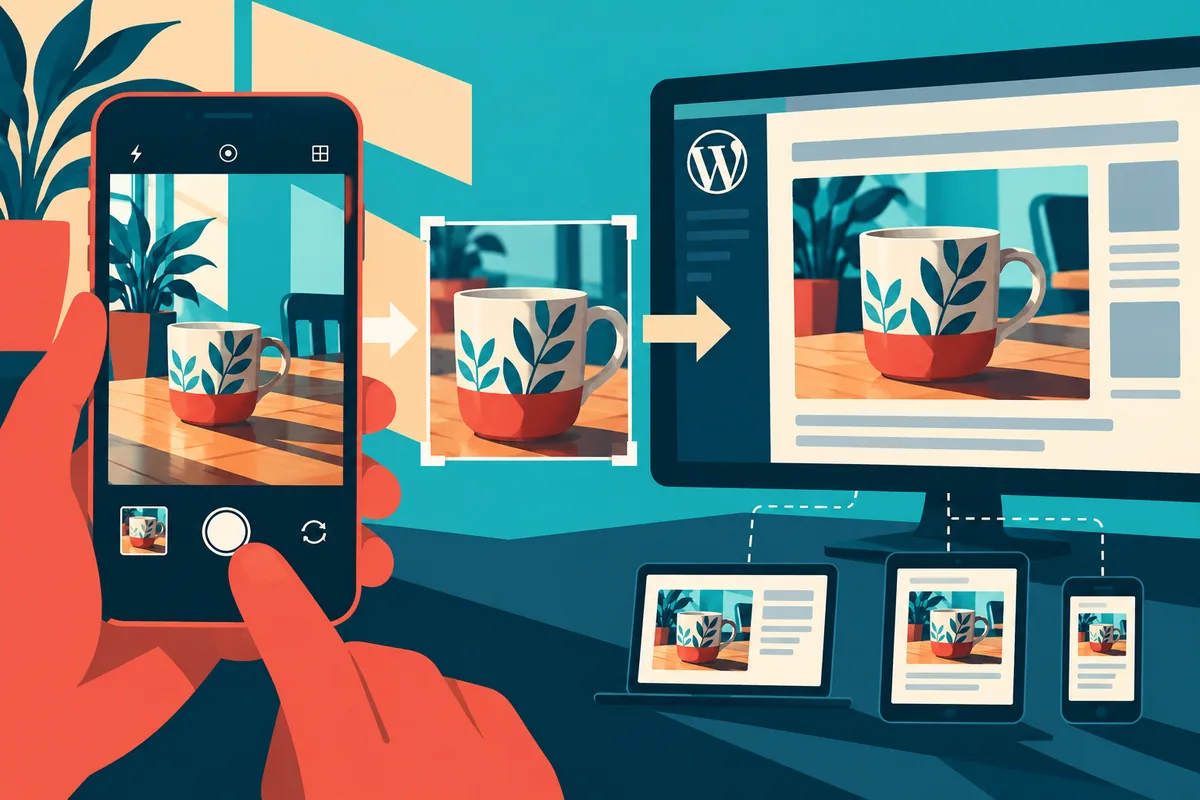
A photograph taken on a phone can be perfectly adequate for a website and much larger than the page needs. WordPress 5.3, released on 12 November, improves support for uploading high-resolution pictures. That removes some friction for staff who supply their own images. It should also prompt a better conversation about the route from camera to article, because successful upload and effective communication are different achievements.
Choose the photograph before choosing its size
Ask what the picture helps the reader understand. A service article may need a close view of a detail rather than a wide image of the office. A product comparison may need matching angles so the differences are visible. Technical optimisation cannot make an irrelevant photograph explain the subject.
Imagine an installation guide illustrated by a phone picture. The important connection sits near one edge. An automatic crop that looks balanced could remove the very detail the article discusses. Preserve the subject when preparing the image and check the version displayed by the actual theme, especially at a narrow width.
Keep source and published use distinct
Retain an appropriate original through the business’s agreed asset process, then use the website’s image handling for its intended presentation. WordPress 5.3’s large-image improvements do not mean every page should deliver a camera-sized file. Inspect which image the browser receives and whether the template uses suitable dimensions.
Review old content separately. A new upload feature does not demonstrate that years of existing article images have been optimised or that a custom template selects them correctly. Choose a few image-heavy pages for a performance check and address the actual delivery issue. Avoid a mass replacement that discards captions or useful editorial crops without review.
The caption and description do different work
A caption can explain why the photograph appears and direct attention to the relevant detail. Alternative text should convey the information needed when the image cannot be seen, according to its role. Do not fill either field with a string of search phrases. The surrounding article should also explain essential facts rather than placing them only inside an image.
Give staff examples from their own content types. Show the difference between an informative diagram, a product photograph and a purely decorative image. That is easier to apply than a rule demanding the same sentence structure for every upload. Check permissions and credit requirements before publishing supplied material.
Make the preview part of publishing
After insertion, review the article on a phone as well as a desktop. Check the crop, caption, text wrapping and the relationship between image and explanation. Use a slow connection test where it helps reveal an excessive resource. An attractive photograph that blocks the useful text for too long needs a delivery adjustment.
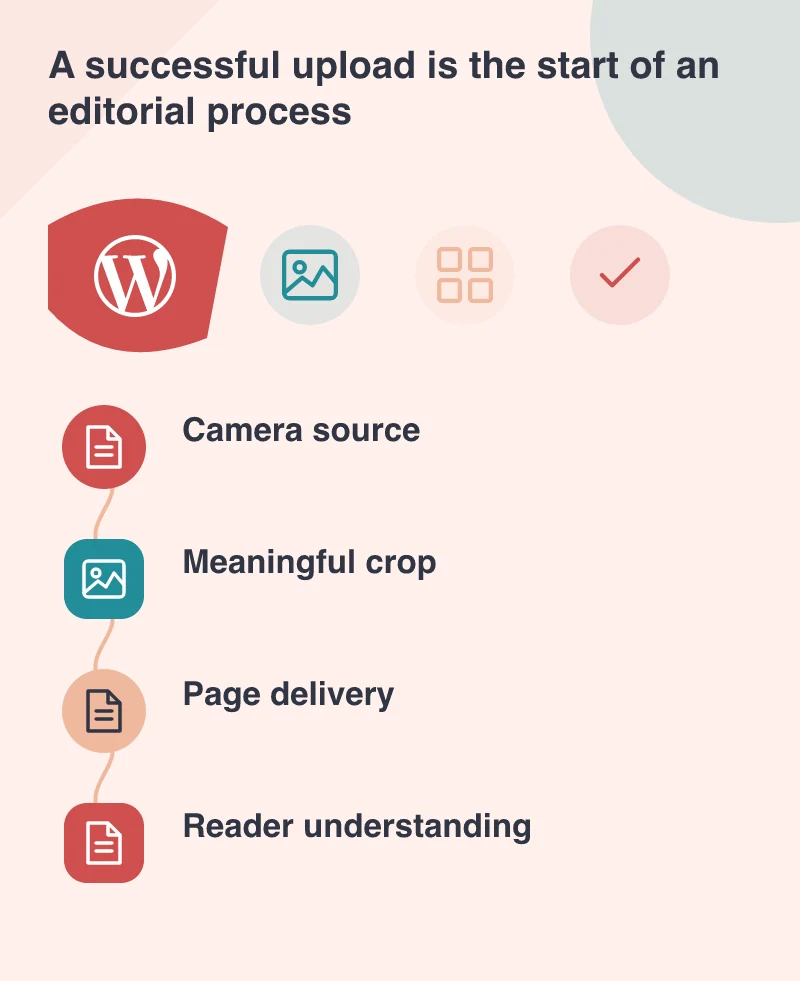
The new WordPress release makes a common input easier to handle. Pair that with a short editorial routine: choose a meaningful image, preserve the detail, write the appropriate explanation and inspect the final page. That gives staff a repeatable way to publish their own material while keeping the website readable and responsive.